Lesson 4 of 23
Find any command, and make the keys yours
Search every command with Ctrl+K, and change any keyboard shortcut to the key you want.
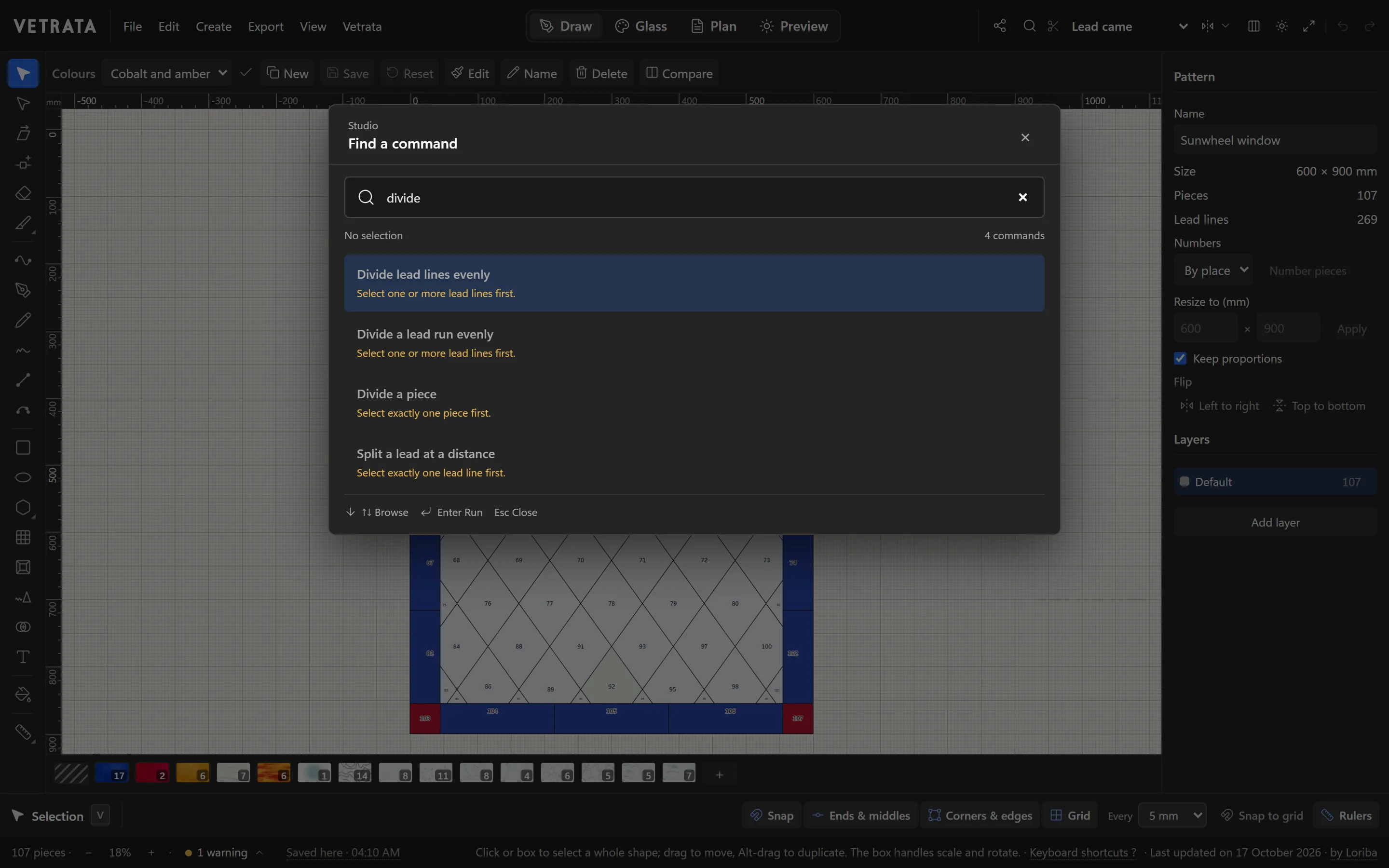
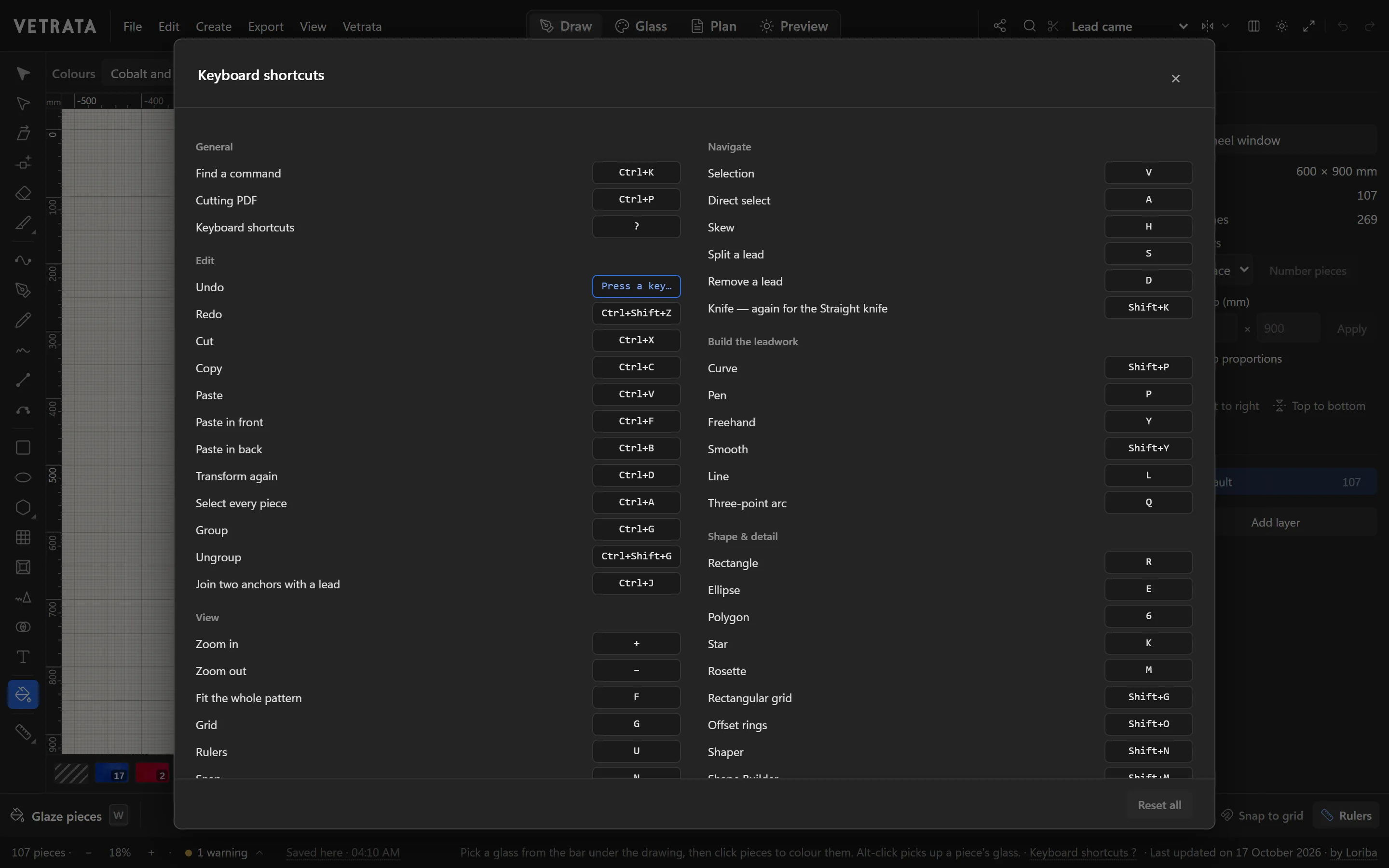
You do not need to remember where a command lives. Find a command searches all of them, and every key the Studio uses can be changed.
-
1
Search with Ctrl+K
Press CtrlK, or click the magnifier at the top right, and type part of what you want: divide, mirror, print. The list narrows as you type.
-
2
Read what a command needs
A command that cannot run yet says why under its name, such as “Select one or more lead lines first”. Select what it asks for, and it is ready.
-
3
Run it from the keyboard
↑ and ↓ move through the list, Enter runs the highlighted command and Esc closes it.
-
4
See every shortcut
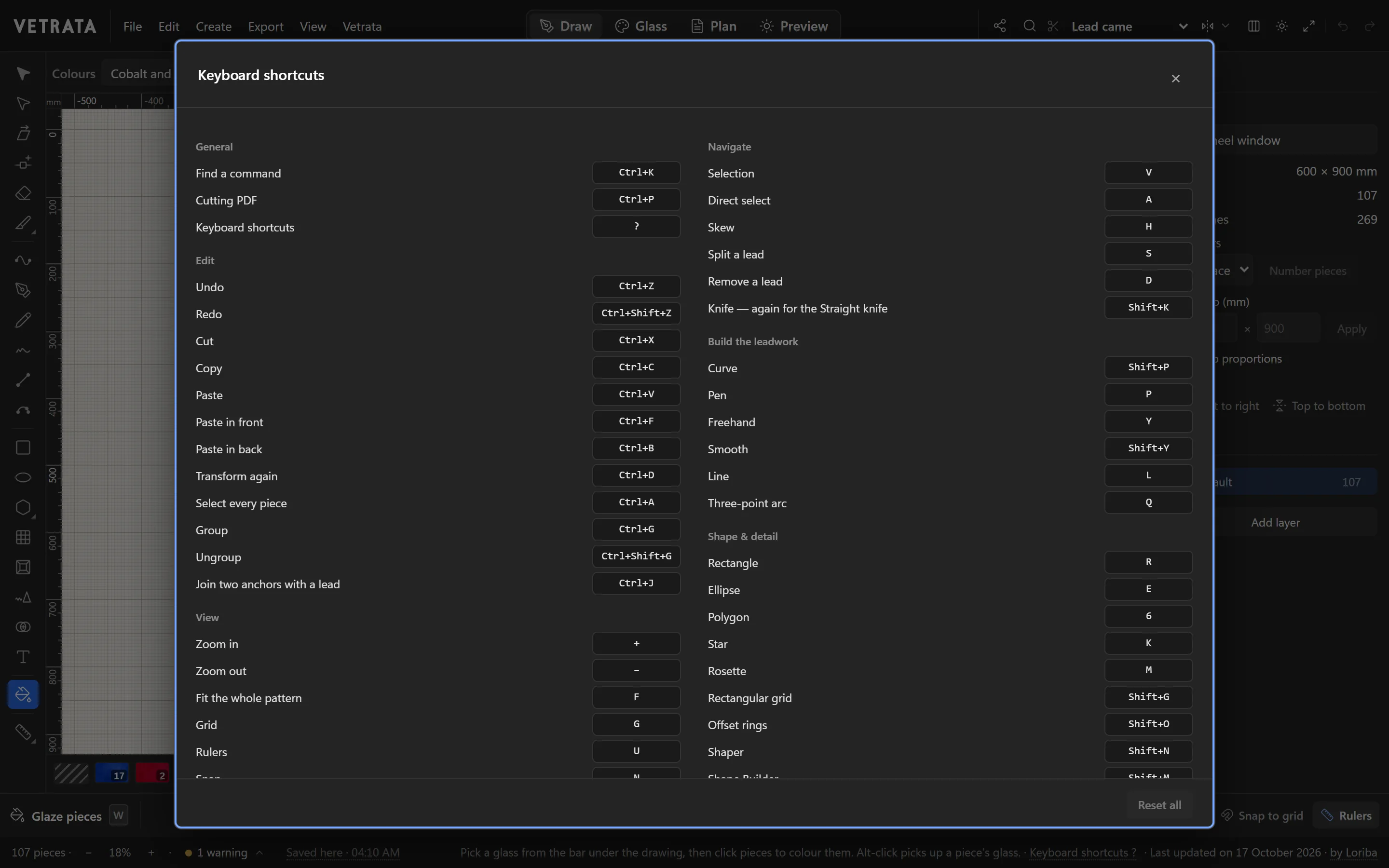
Press ? for Keyboard shortcuts, also in the Vetrata menu. It lists every command that has a key, in the Studio's own groups.
-
5
Change a key
Click a command's key, then press the new one. Backspace leaves the command with no key, and Esc keeps the old one.
If the key you pressed belonged to another command, the dialog says which. Reset all puts every key back.
Tip On a Mac, every Ctrl in the Studio is ⌘.
 Save, open and keep your patterns