Lesson 20 of 23
Check your printer with the 100 mm square
Measure the square on page one, and correct a printer that prints a little large or small.
Printers are rarely exact. A pattern printed 1% large is 6 mm too wide over 600 mm, enough to spoil a panel. One measurement fixes it.
-
1
Print page one
Save a cutting PDF and print page one at 100% or Actual size.
-
2
Measure the square
Measure the 100 mm square with a steel rule, both ways. A tape or a plastic ruler is not accurate enough.
-
3
Work out the correction
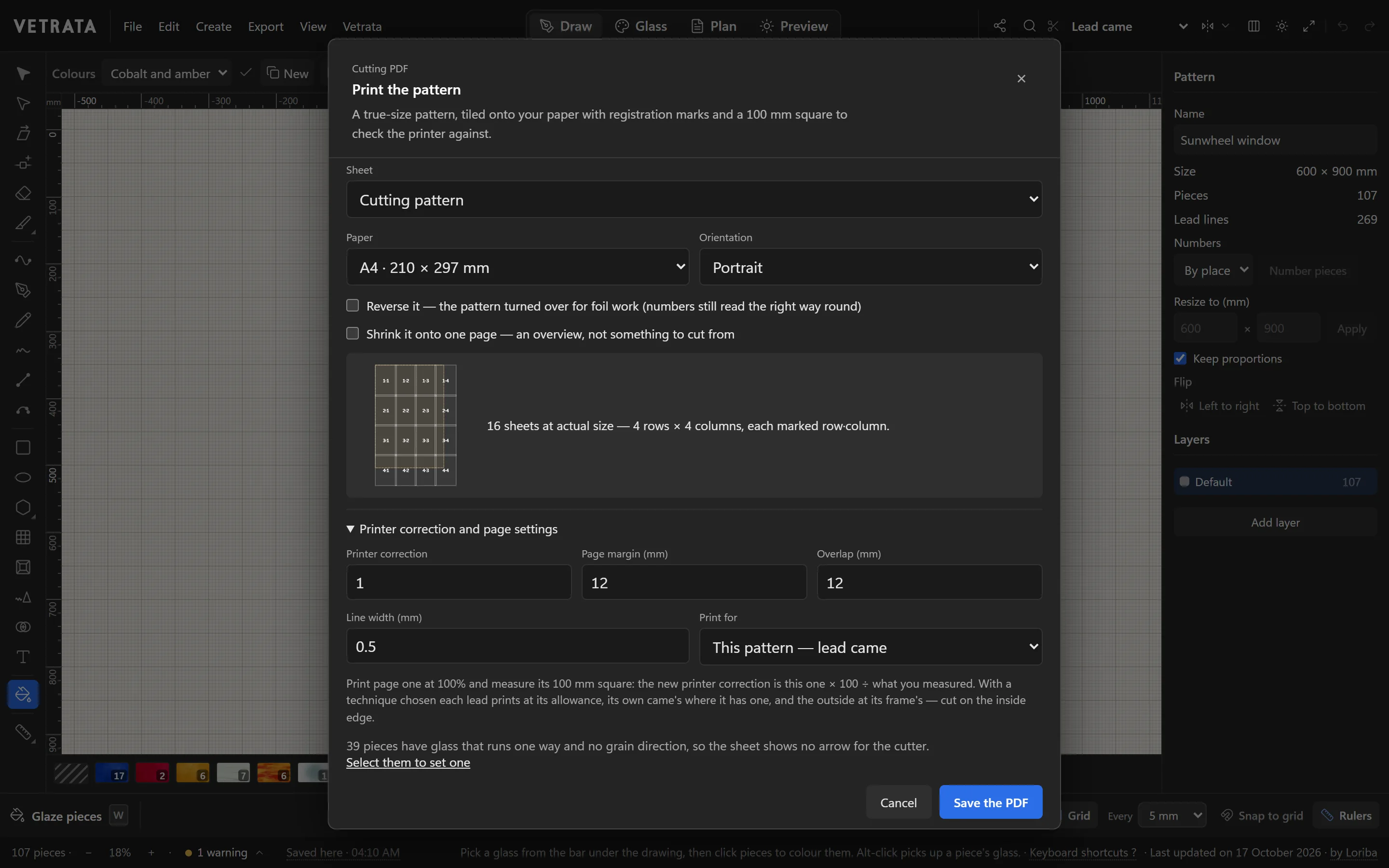
Open Printer correction and page settings in the Cutting PDF dialog. The new printer correction is the one there now, times 100, divided by what you measured.
A square that measures 99 mm with a correction of 1 gives 1 × 100 ÷ 99 = 1.0101.
-
4
Print again and check
Save the PDF again and measure. The square should be 100 mm both ways.
-
5
Margins, overlap and lines
In the same place, set the page margin your printer needs, how much the sheets overlap, the width of the printed lines and the technique the cut lines are printed for.
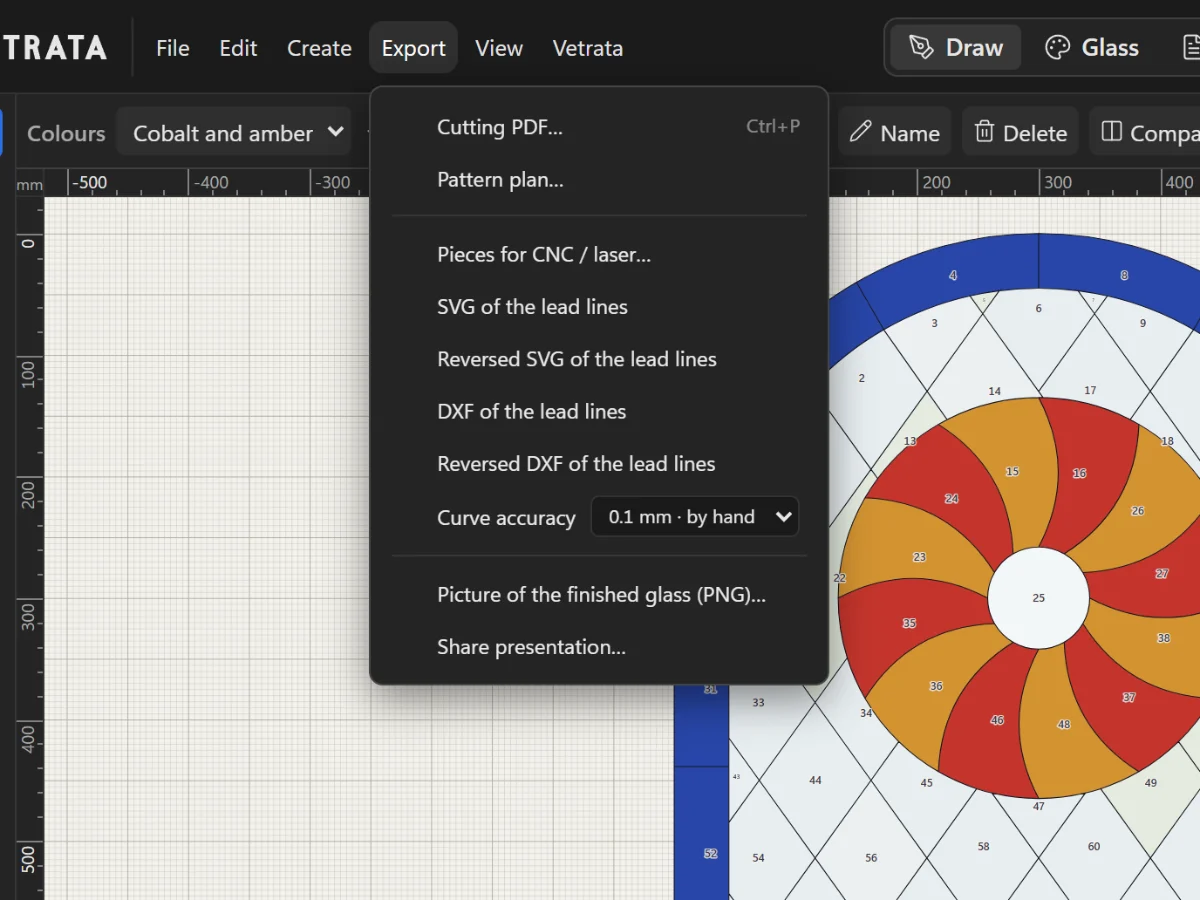 Print the cutting pattern true to scale