Lesson 13 of 23
Add motifs and lettering
Set a flower, a bird or a knot from the motif library into your pattern, and letter a name or a date in lead.
The Studio comes with a library of motifs drawn for glass, every one cuttable. You can add your own, and set lettering the same way.
-
1
Open the library
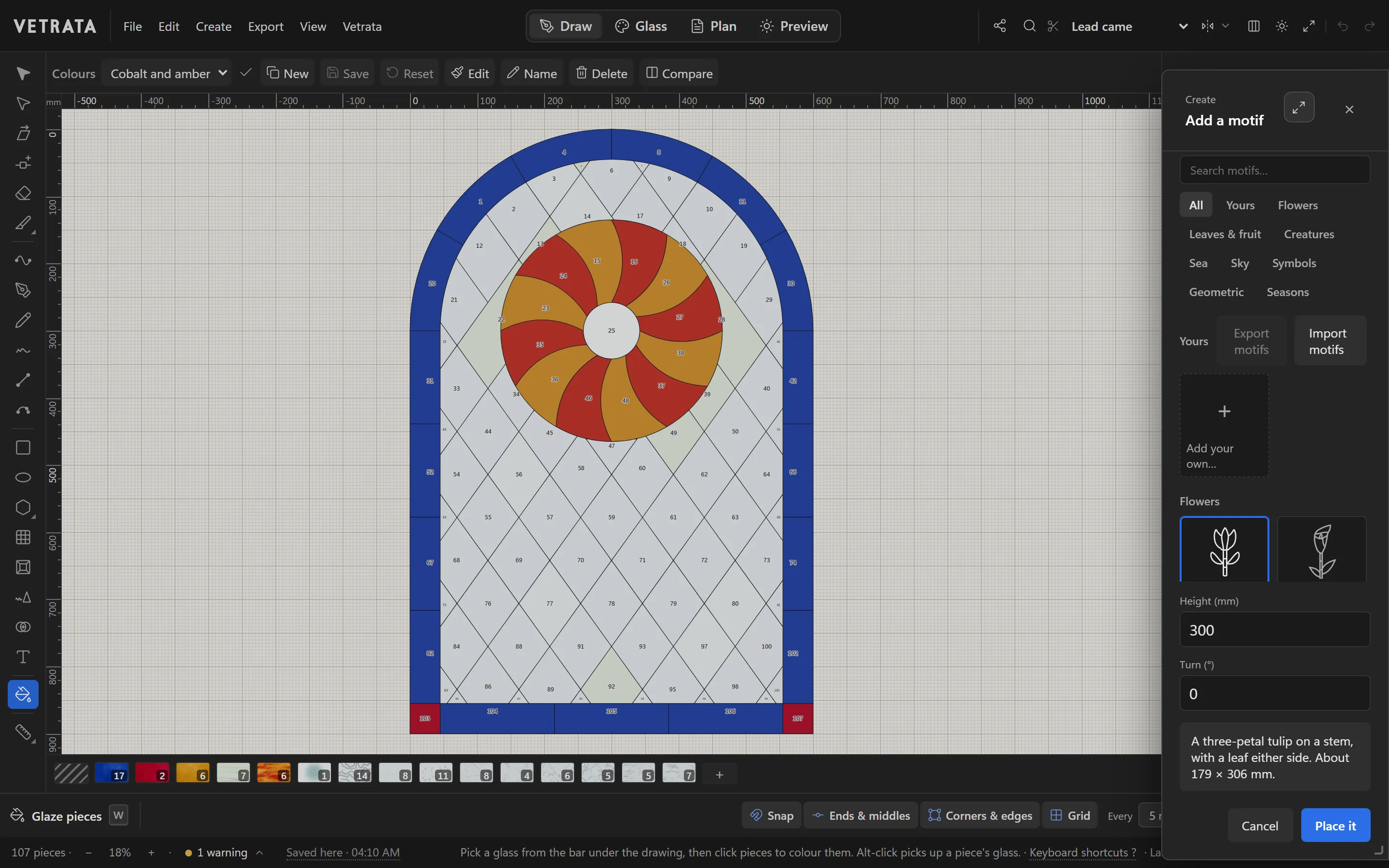
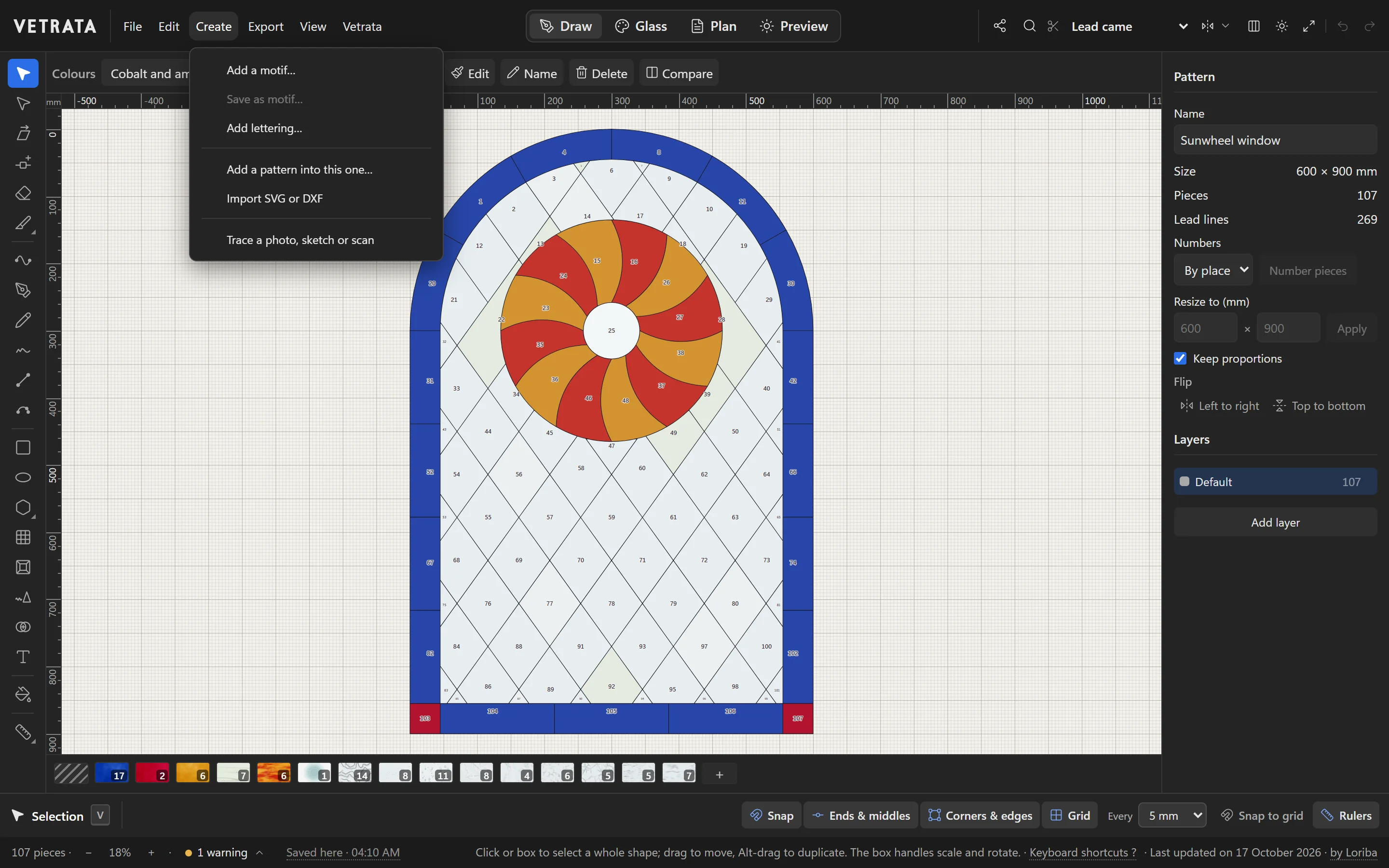
Choose Create › Add a motif…. Browse by subject, such as Flowers, Leaves & fruit, Creatures, Sea, Sky, Symbols, Geometric or Seasons, or search by name.
-
2
Size it and place it
Pick a motif, set its height and turn, then click Place it and click the pattern where it should go. It is cut into the leads it lands on.
-
3
Save your own
Select part of a pattern and choose Save as motif… to keep it in your own motifs, under Yours, for any pattern in this browser.
-
4
Letter a name
Create › Add lettering… sets a line of letters in lead, placed the same way as a motif.
-
5
Start from a motif
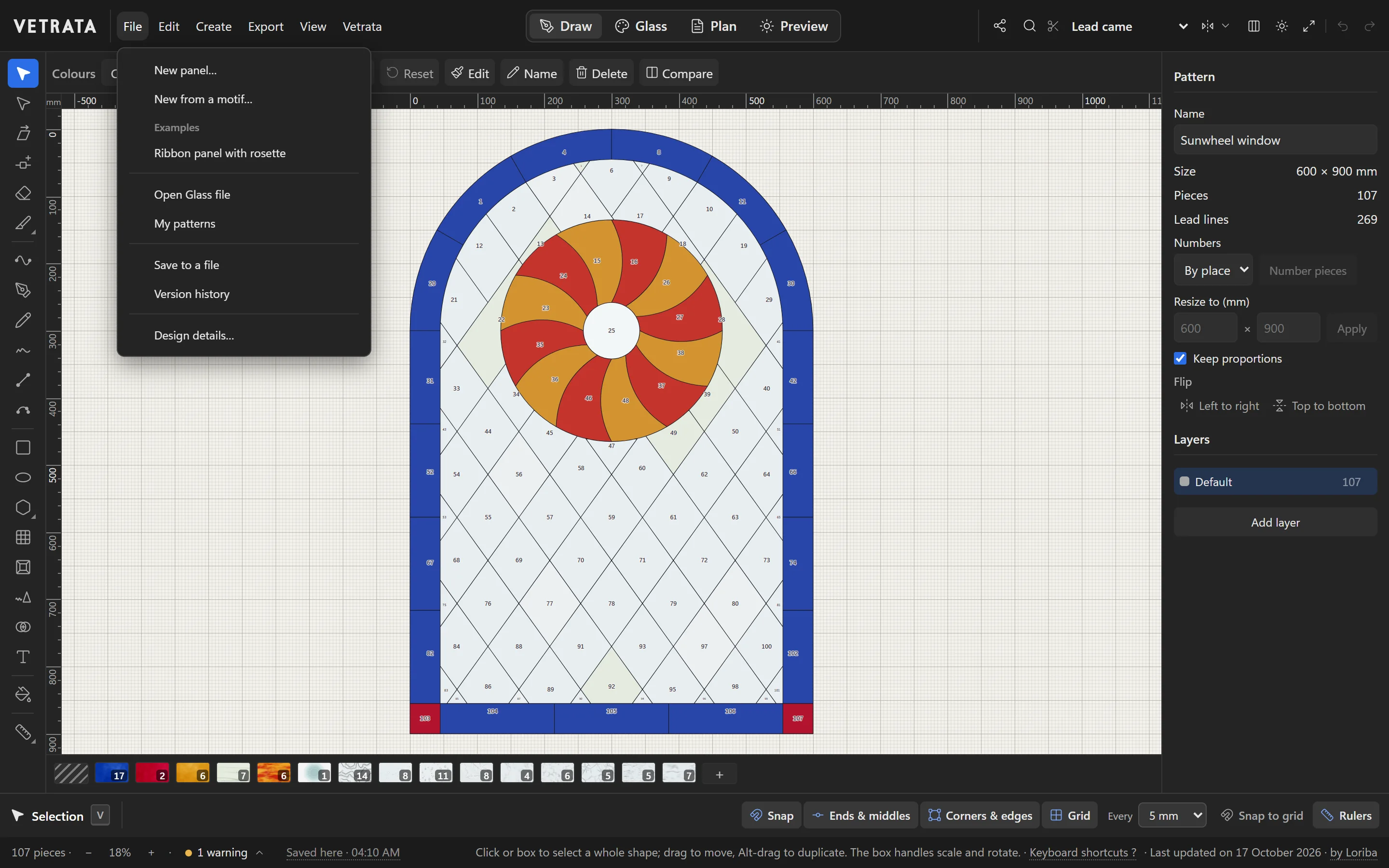
File › New from a motif… starts a new pattern from a motif, and Create › Add a pattern into this one… brings in a whole saved pattern.
 Check that the glass can be cut
More in Draw
 Draw
Shapes, grids and radial designs
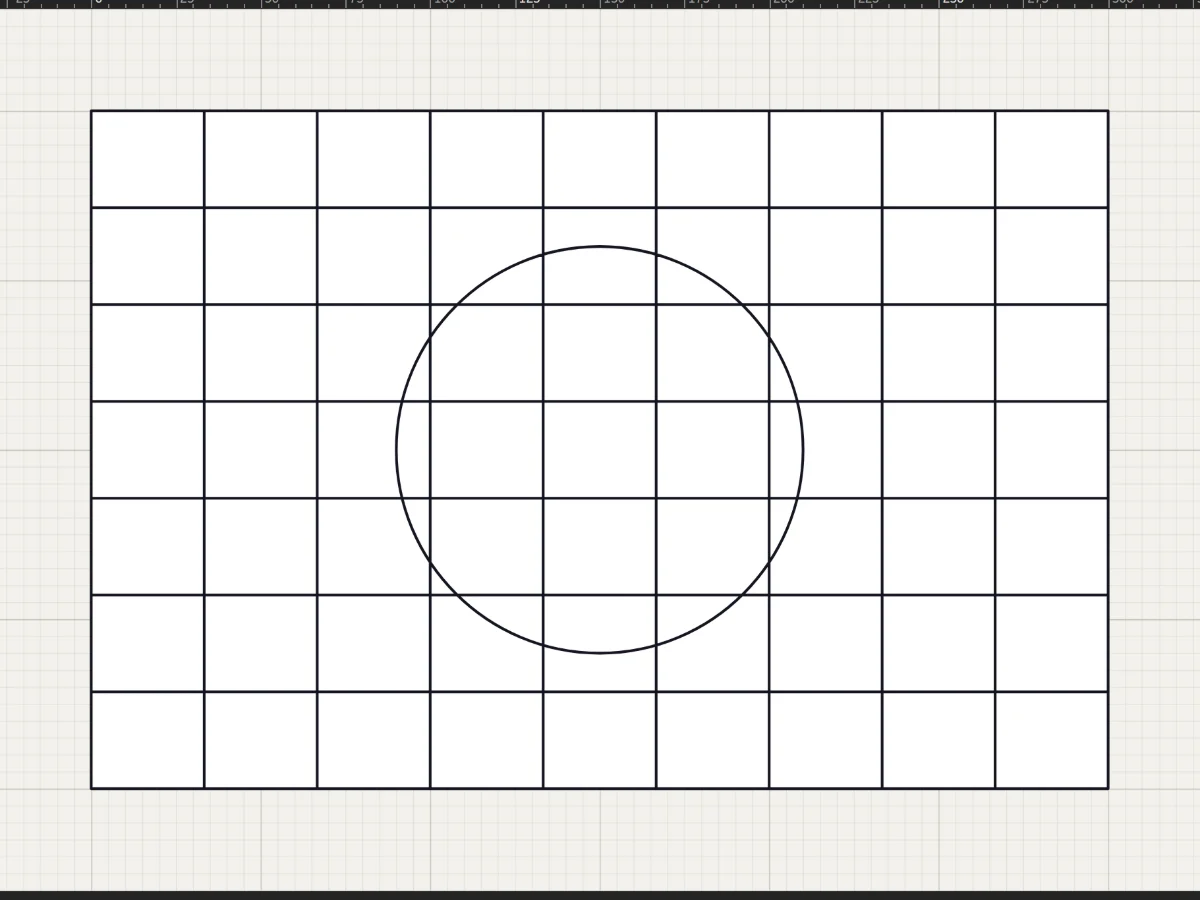
Rectangles, circles, stars, rosettes and quarry grids in a few drags, each one cut into the leadwork.
5 steps · 2 min · Try it in the page
Draw
Shapes, grids and radial designs
Rectangles, circles, stars, rosettes and quarry grids in a few drags, each one cut into the leadwork.
5 steps · 2 min · Try it in the page
 Draw
Draw lead lines
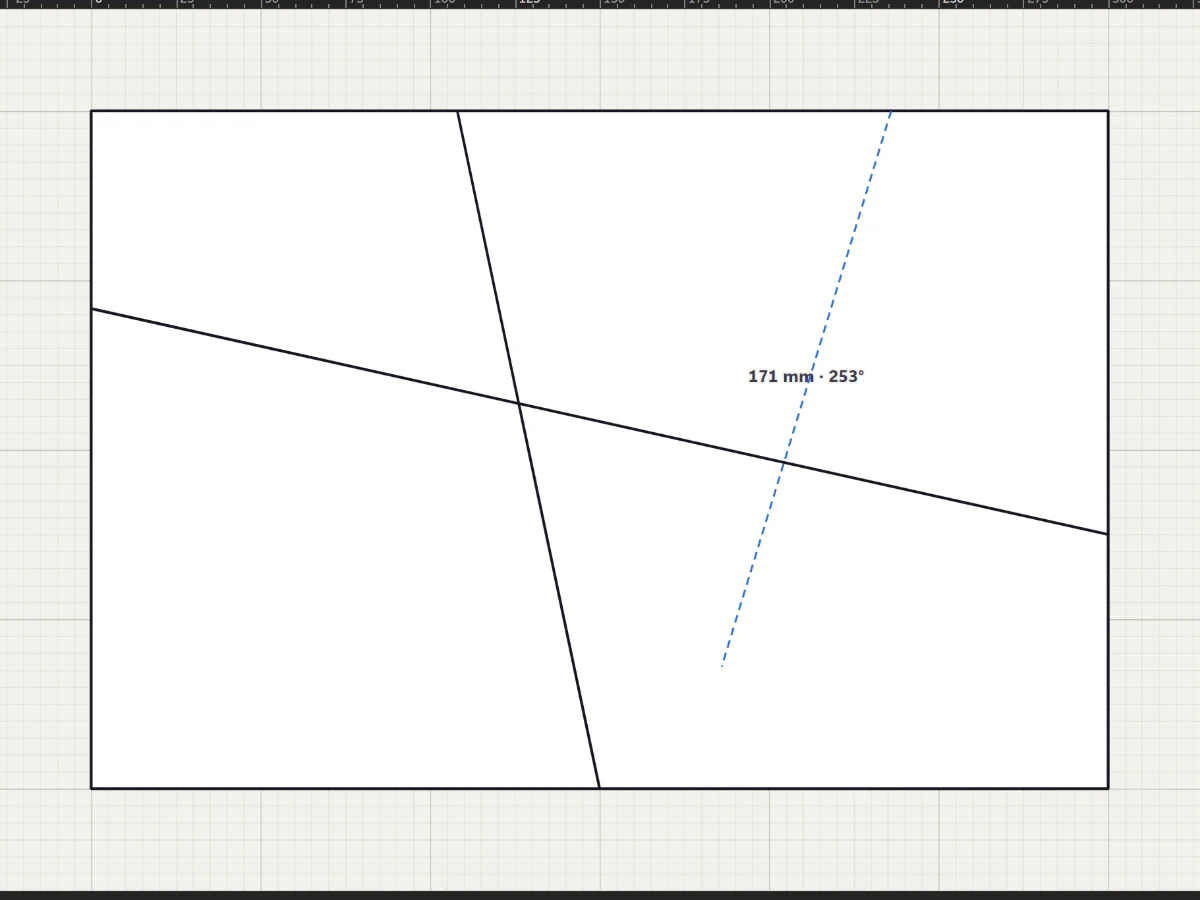
Straight leads with the Line tool, curves with the Pen and Curve tools, and freehand strokes that come out clean.
5 steps · 2 min · Try it in the page
Draw
Draw lead lines
Straight leads with the Line tool, curves with the Pen and Curve tools, and freehand strokes that come out clean.
5 steps · 2 min · Try it in the page
 Draw
Select, move and reshape
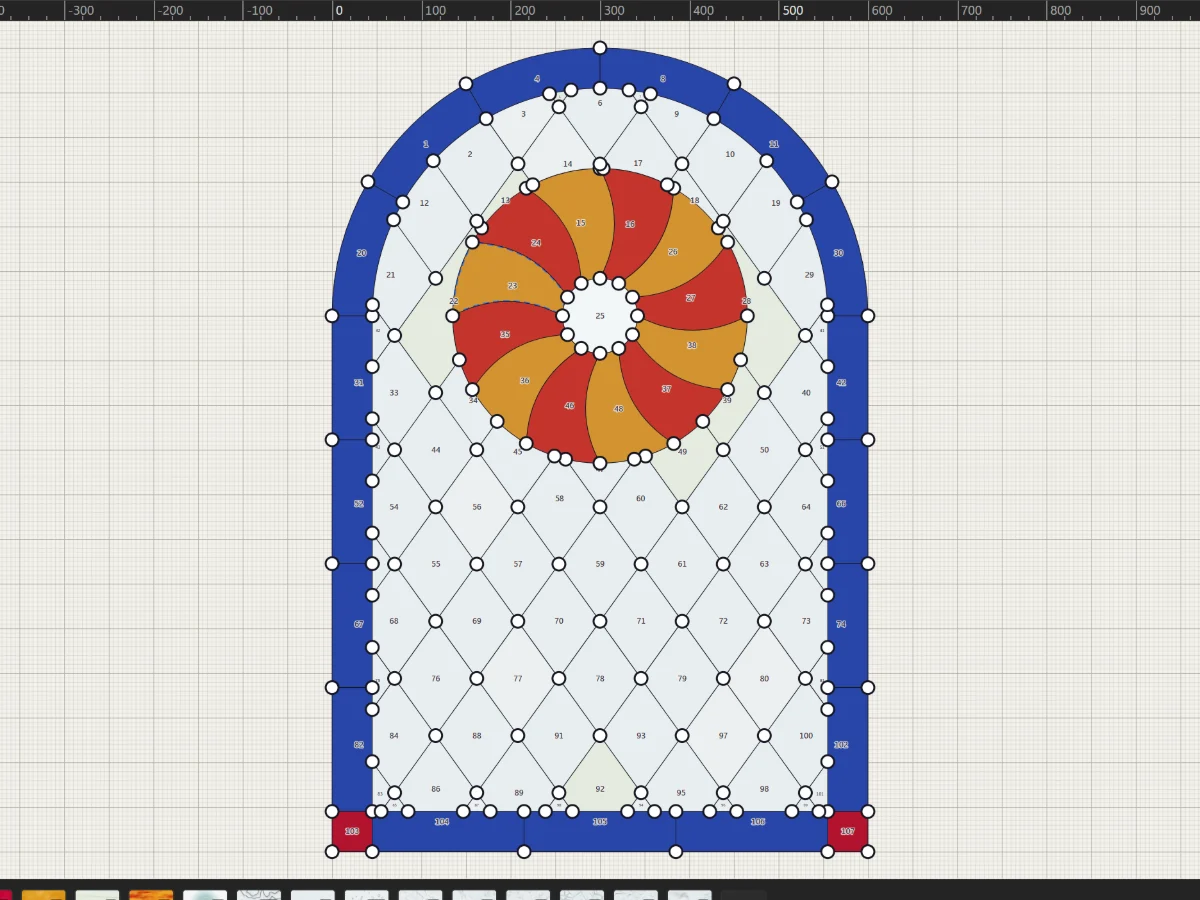
Move whole shapes, bend leads, drag anchors and round corners with the two selection tools.
5 steps · 2 min
Draw
Select, move and reshape
Move whole shapes, bend leads, drag anchors and round corners with the two selection tools.
5 steps · 2 min