Lesson 6 of 23
Shapes, grids and radial designs
Rectangles, circles, stars, rosettes and quarry grids in a few drags, each one cut into the leadwork.
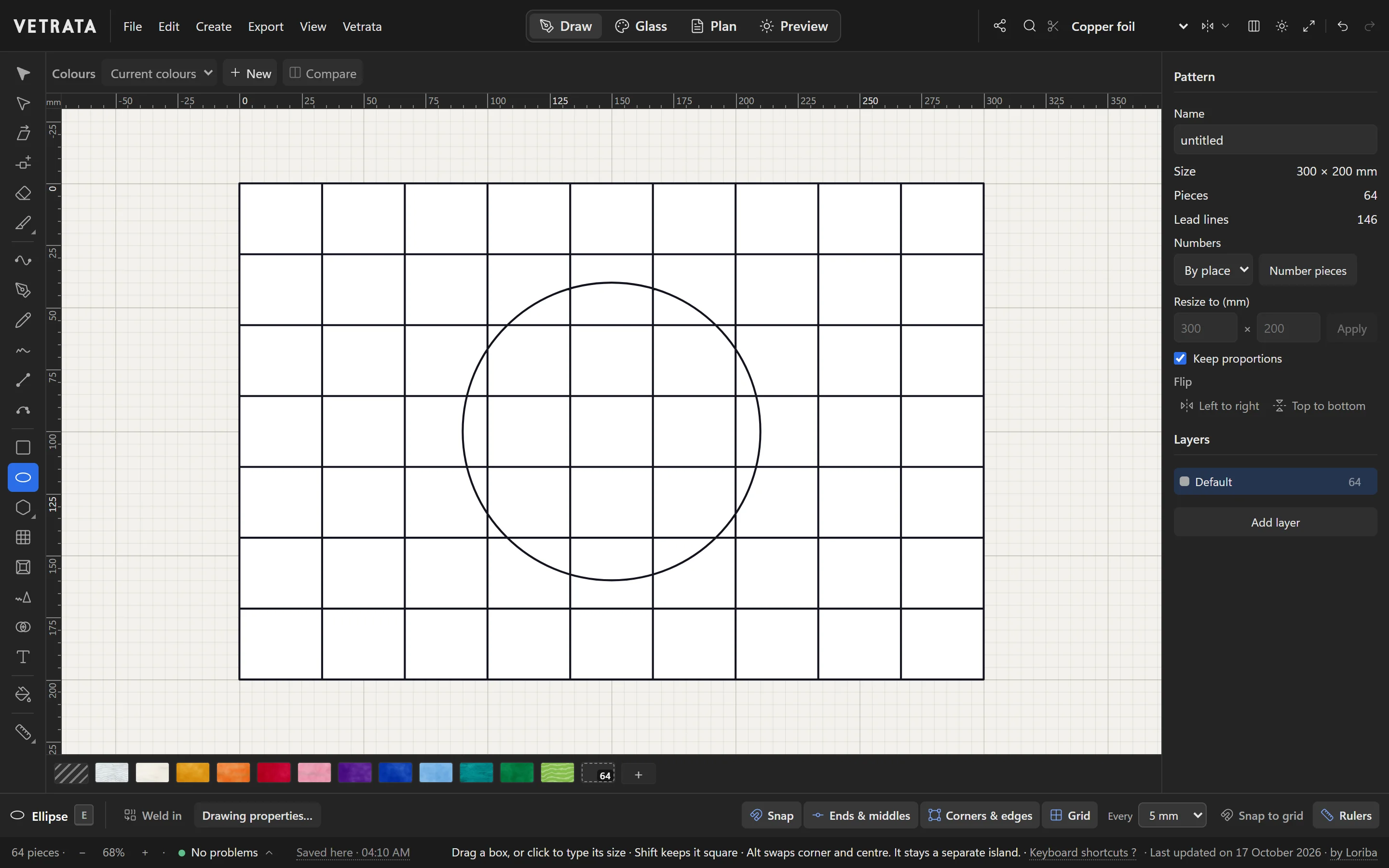
Shapes are leads too. Draw a circle across a grid of quarries and it cuts every quarry it crosses.
-
1
Rectangles and ellipses
Rectangle (R) and Ellipse (E) draw from a drag, or from a click when you want to type the size. Hold Shift for a square or a circle, and Alt to draw from the centre out.
-
2
A grid of quarries
Rectangular grid (ShiftG) fills a box with dividers. While you drag, ↑ and ↓ add or take away horizontal dividers, and ← and → vertical ones.
-
3
Polygons, stars and rosettes
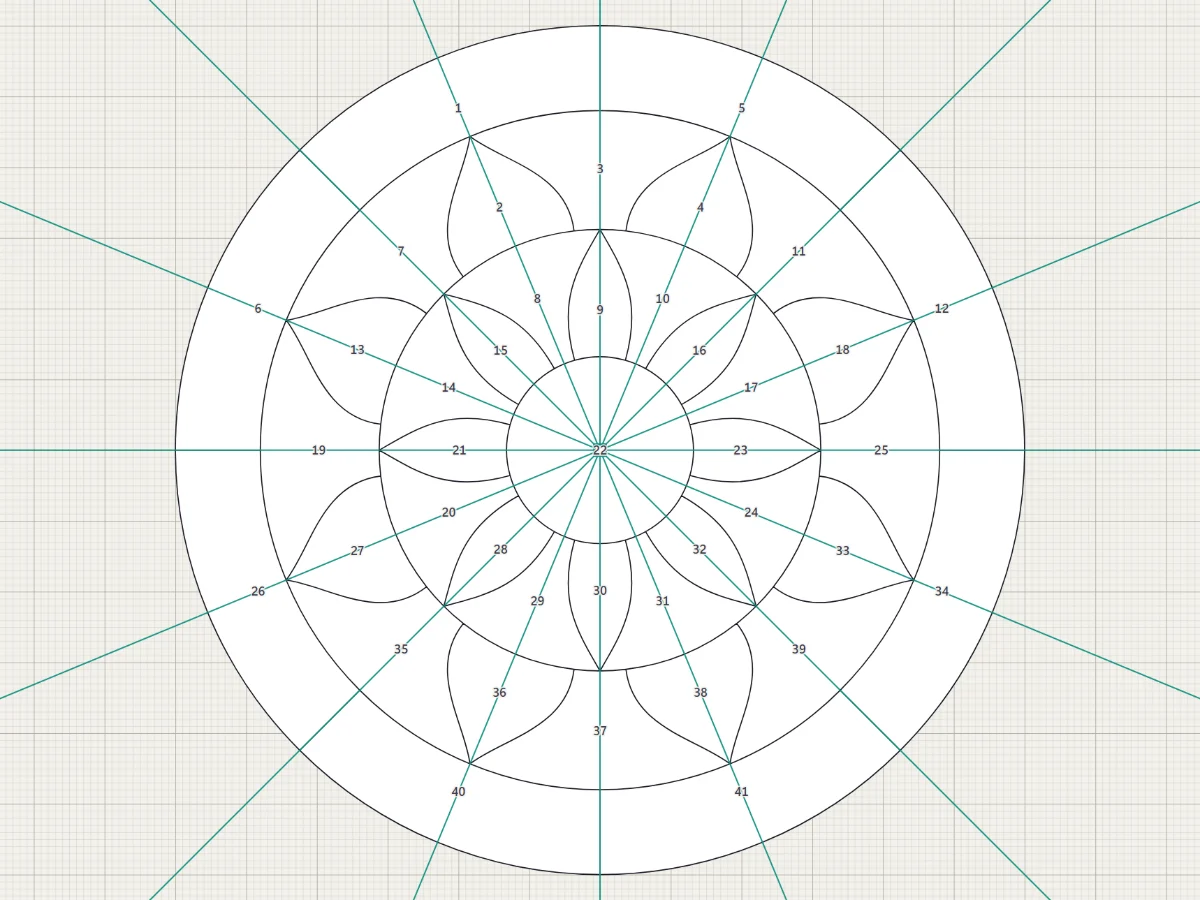
The Radial shape tool has three forms, each with its own key: Polygon (6), Star (K) and Rosette (M). Drag out from the centre; ↑ and ↓ change the count as you go.
-
4
Rings inside a piece
Offset rings (ShiftO) strikes rings inside a piece at the widths you give: a border that follows a curved edge, in one click.
-
5
Weld it in, or keep it apart
With a shape tool in hand, Weld in in the bar under the drawing decides whether the shape joins the leads it crosses or stays a separate island. Leave it on to cut the shape into the pattern.
Tip Shaper (ShiftN) turns a rough sketch into a clean line, circle, rectangle or polygon when you let go.
Try it
Now do it, with the Studio's own engine
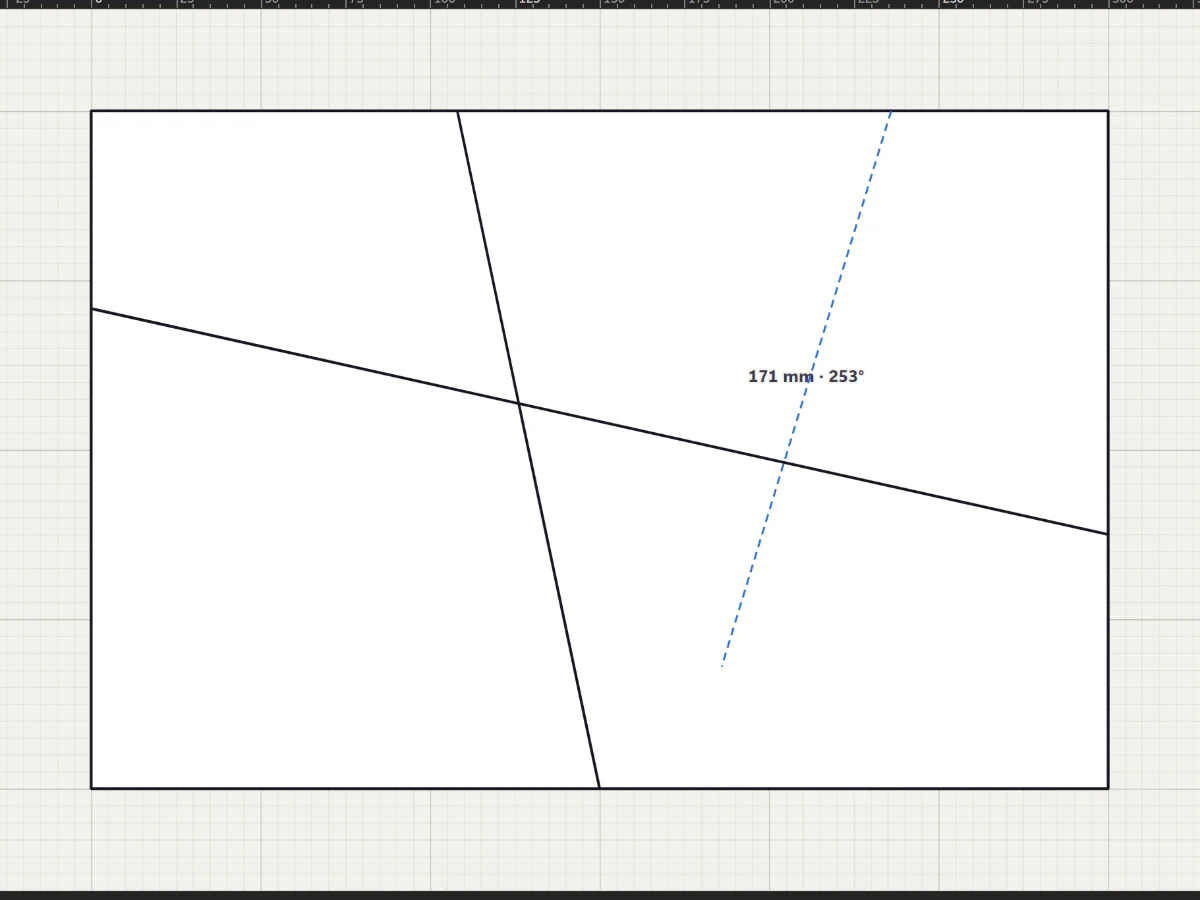
- Draw a lead from edge to edge
- Cut the field into six pieces or more
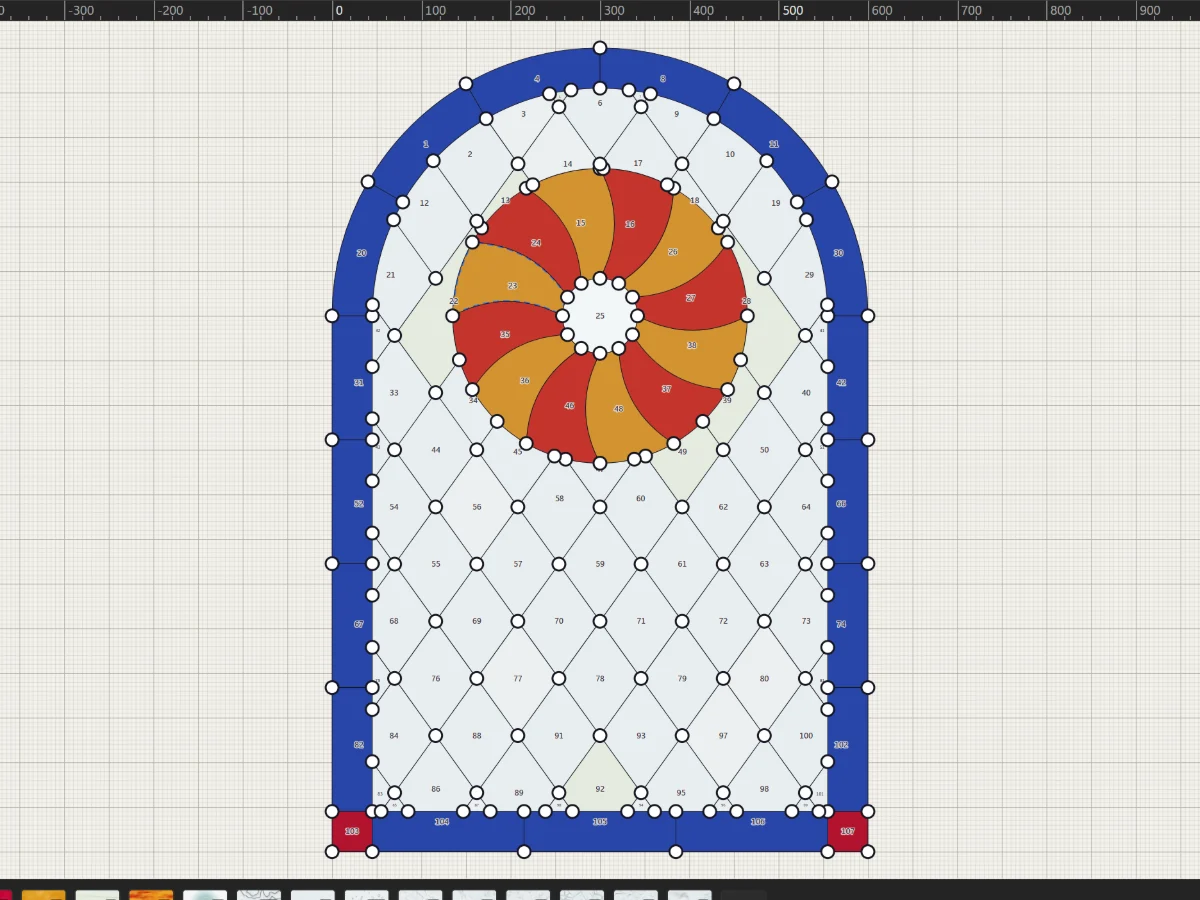 Draw lead lines
More in Draw
 Draw
Draw it once with the Mirror
Mirror across a line or repeat around a centre, and see the reflected part live while you draw.
5 steps · 2 min
Draw
Draw it once with the Mirror
Mirror across a line or repeat around a centre, and see the reflected part live while you draw.
5 steps · 2 min
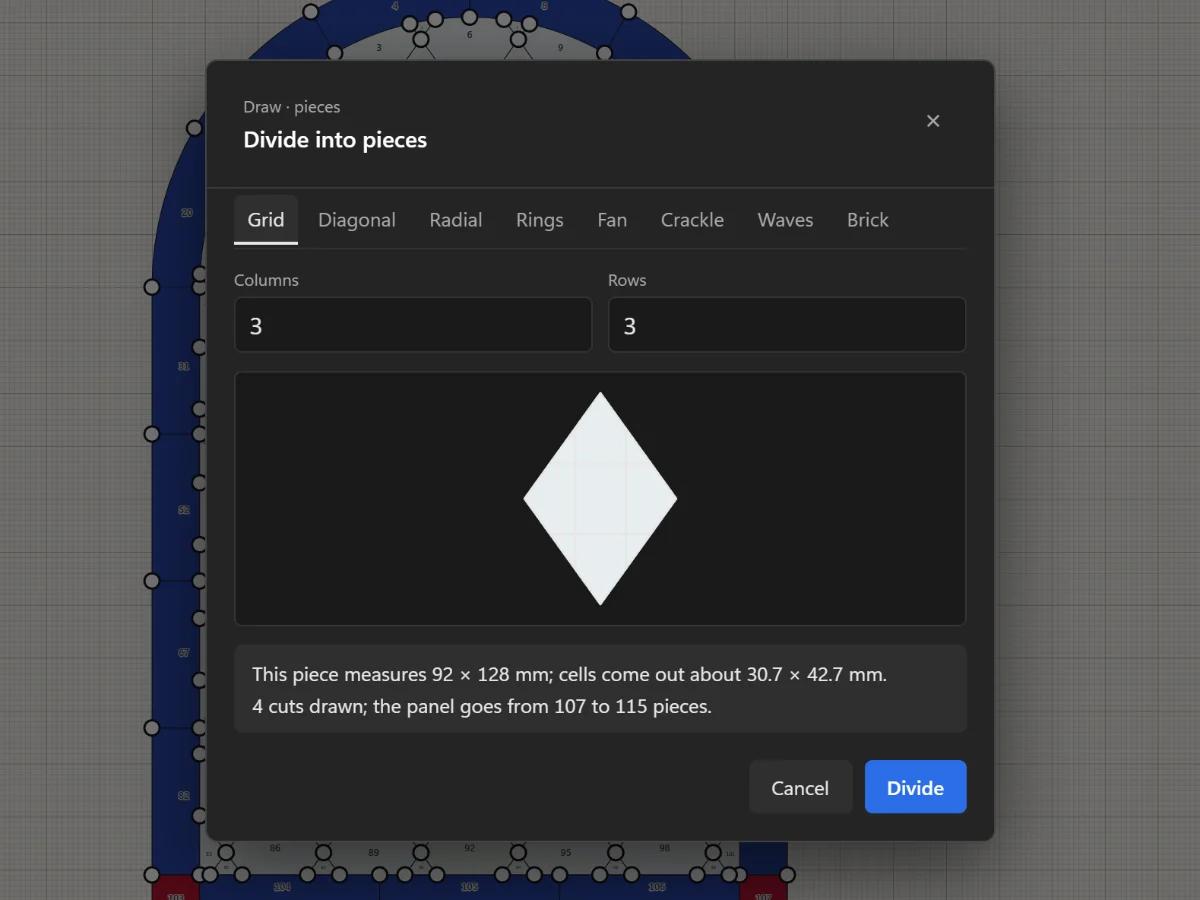 Draw
Split, cut and join pieces
Add joints, remove leads, cut with the Knife, divide a piece evenly and join pieces with the Shape Builder.
5 steps · 2 min · Try it in the page
Draw
Split, cut and join pieces
Add joints, remove leads, cut with the Knife, divide a piece evenly and join pieces with the Shape Builder.
5 steps · 2 min · Try it in the page
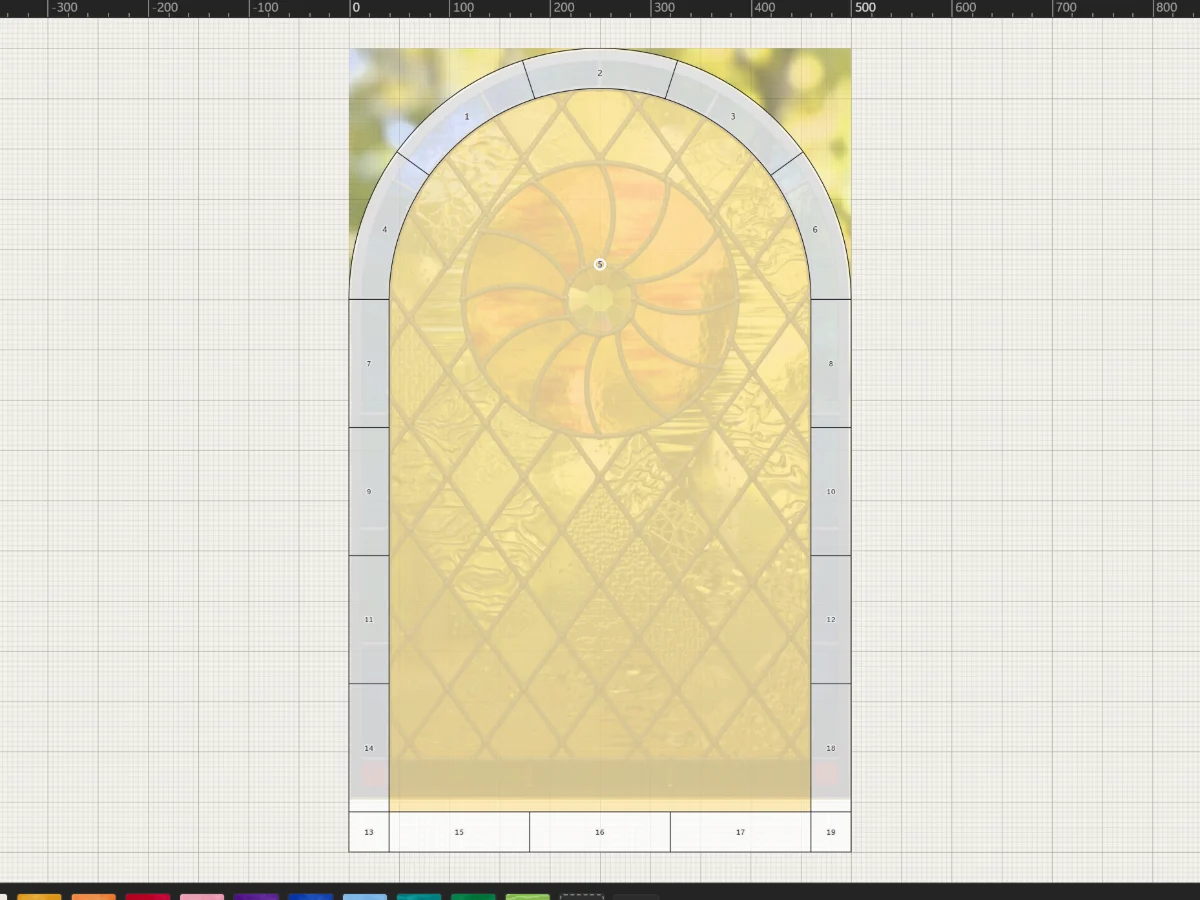 Draw
Trace a photo, sketch or scan
Put a picture under the pattern at its real size, fade it, and draw your leads over it by hand.
5 steps · 2 min
Draw
Trace a photo, sketch or scan
Put a picture under the pattern at its real size, fade it, and draw your leads over it by hand.
5 steps · 2 min