Lesson 7 of 23
Select, move and reshape
Move whole shapes, bend leads, drag anchors and round corners with the two selection tools.
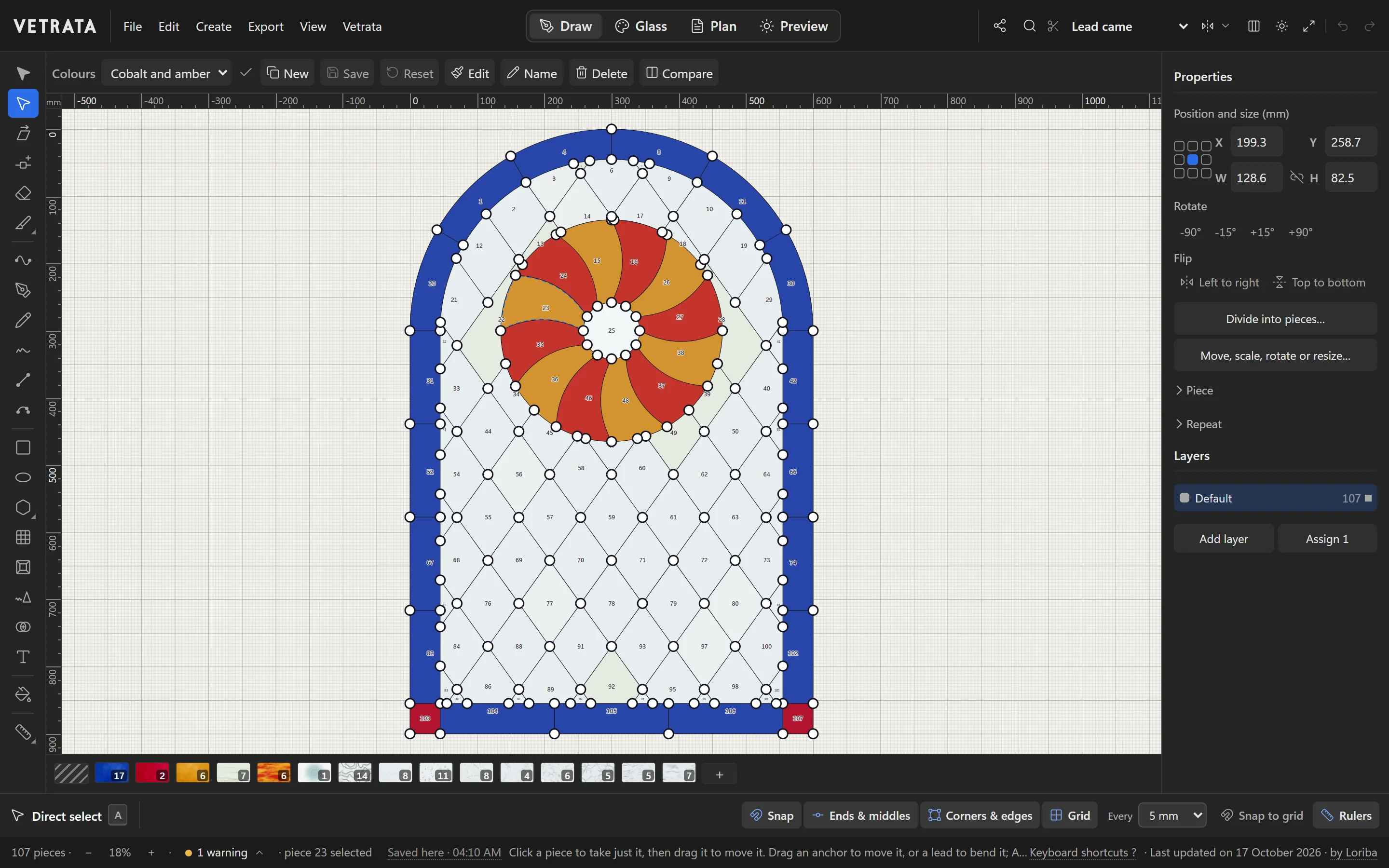
There are two arrows at the top of the tool rail. The solid one takes whole shapes; the hollow one takes a single piece, anchor or lead.
-
1
Selection
Selection (V): click, or drag a box, to select whole shapes. Drag to move them, Alt-drag to duplicate them. The selection box's handles scale and rotate.
-
2
Direct select
Direct select (A): click a piece to take just that piece, then drag to move it.
Drag an anchor to move it, or drag a lead to bend it. Alt-drag a straight lead to slide it over.
-
3
Corners and curves
Double-click an anchor to switch it between a corner and a smooth curve. Drag the widget at a corner to round it; the corner stays rounded, and its radius stays editable.
-
4
Exact numbers
With something selected, the Inspector shows its position and size: type new values to place it exactly. It also turns and flips, and Move, scale, rotate or resize… does all four by numbers.
-
5
Slant it, or do it again
Skew (H) slants the selection: drag sideways or down.
Edit › Transform again (CtrlD) repeats your last move, turn or scale, so a row of evenly spaced copies takes a few presses.
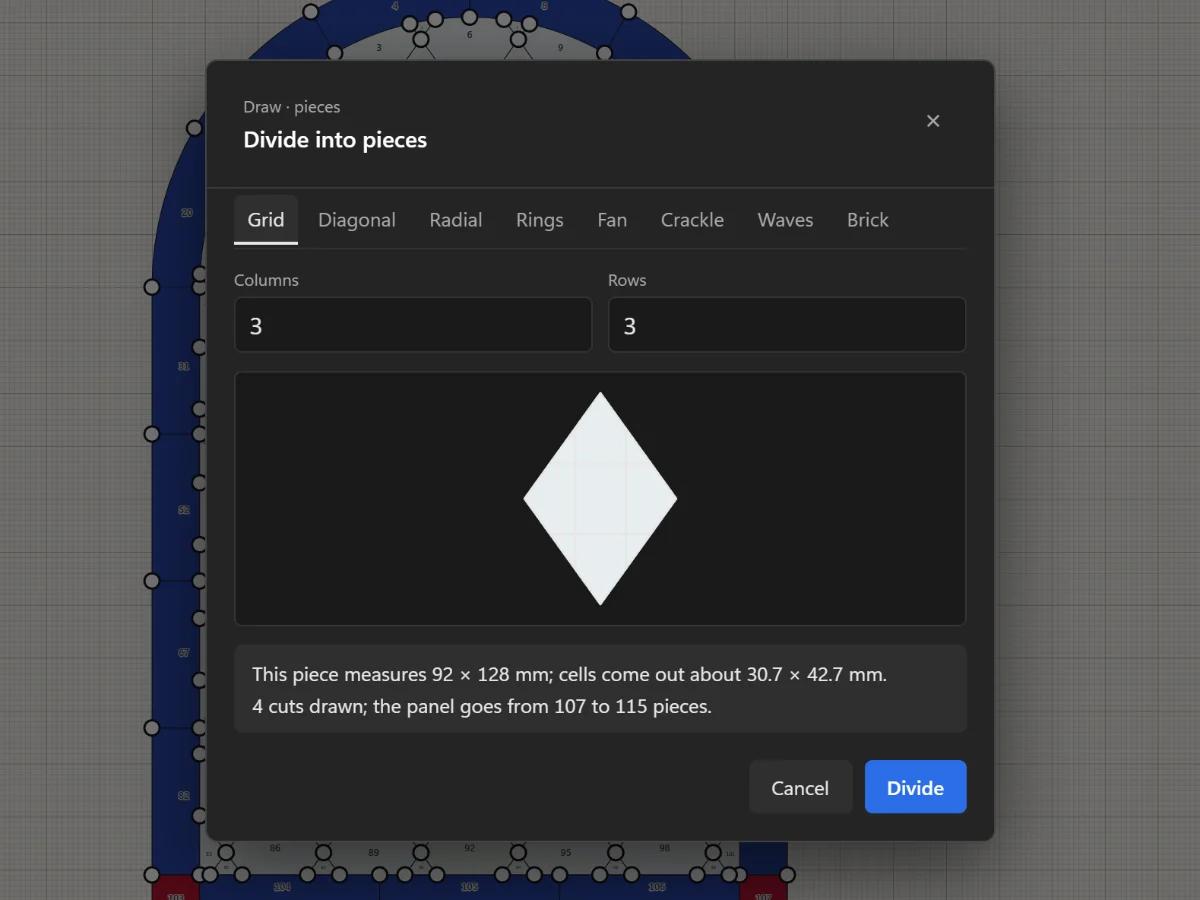 Shapes, grids and radial designs
More in Draw
 Draw
Rulers, guides, snapping and measuring
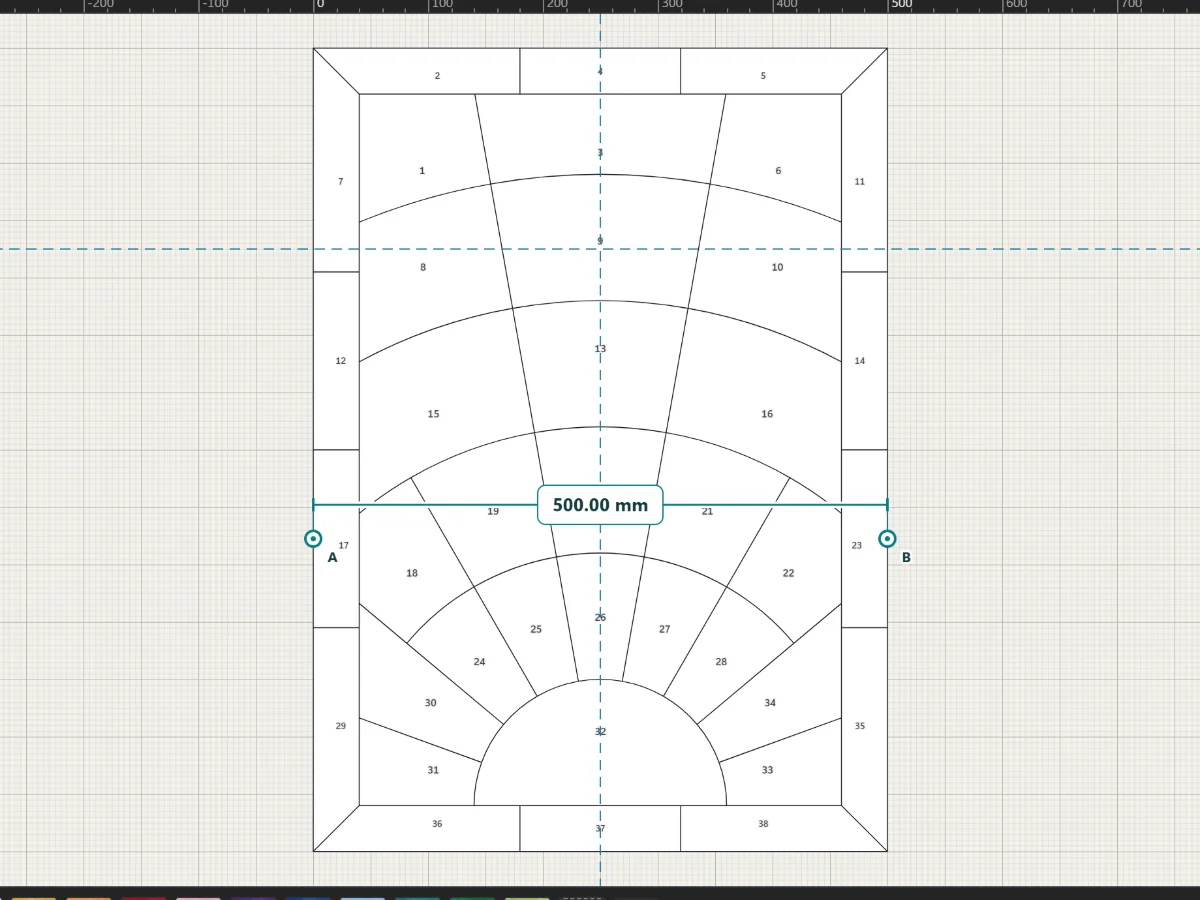
Drag guides out of the rulers, snap to ends, middles and edges, and measure anything on the pattern.
4 steps · 2 min
Draw
Rulers, guides, snapping and measuring
Drag guides out of the rulers, snap to ends, middles and edges, and measure anything on the pattern.
4 steps · 2 min
 Draw
Draw lead lines
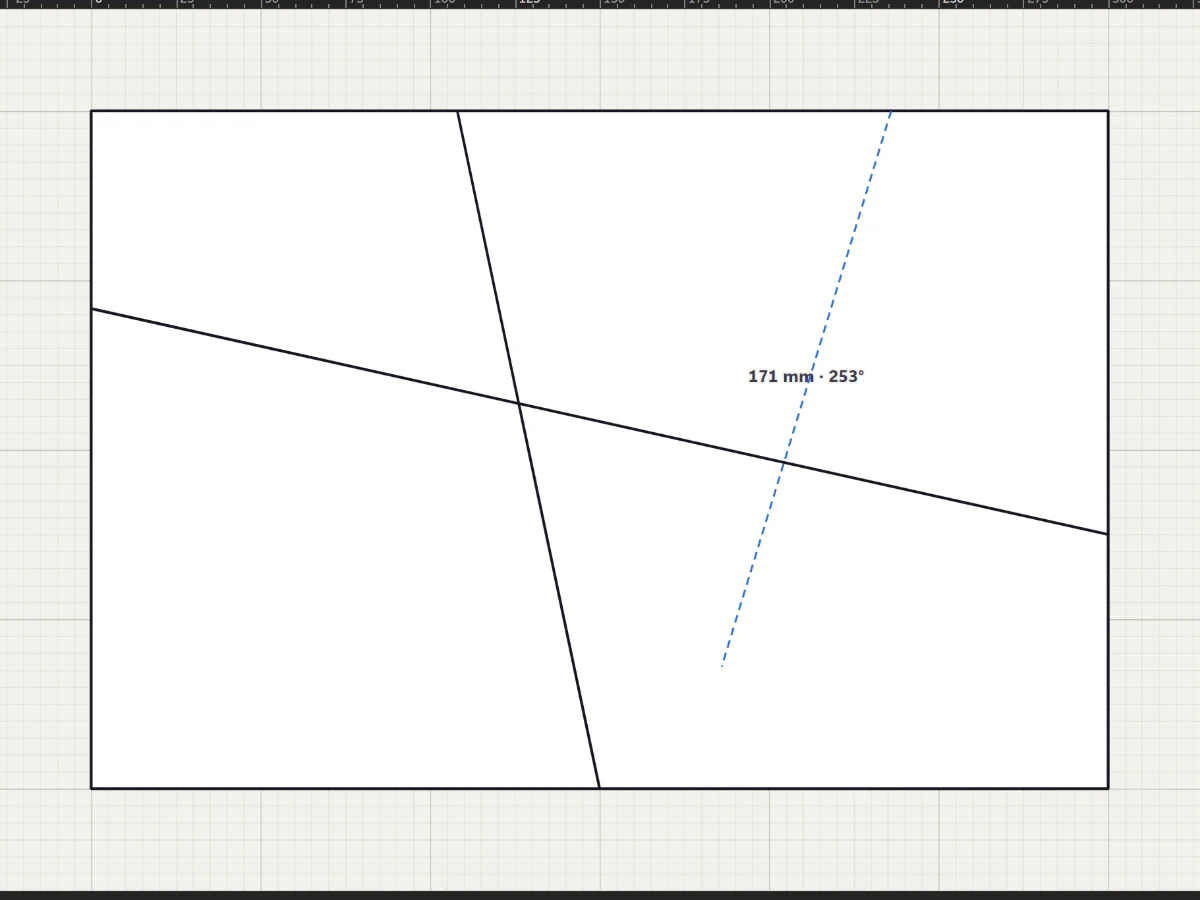
Straight leads with the Line tool, curves with the Pen and Curve tools, and freehand strokes that come out clean.
5 steps · 2 min · Try it in the page
Draw
Draw lead lines
Straight leads with the Line tool, curves with the Pen and Curve tools, and freehand strokes that come out clean.
5 steps · 2 min · Try it in the page
 Draw
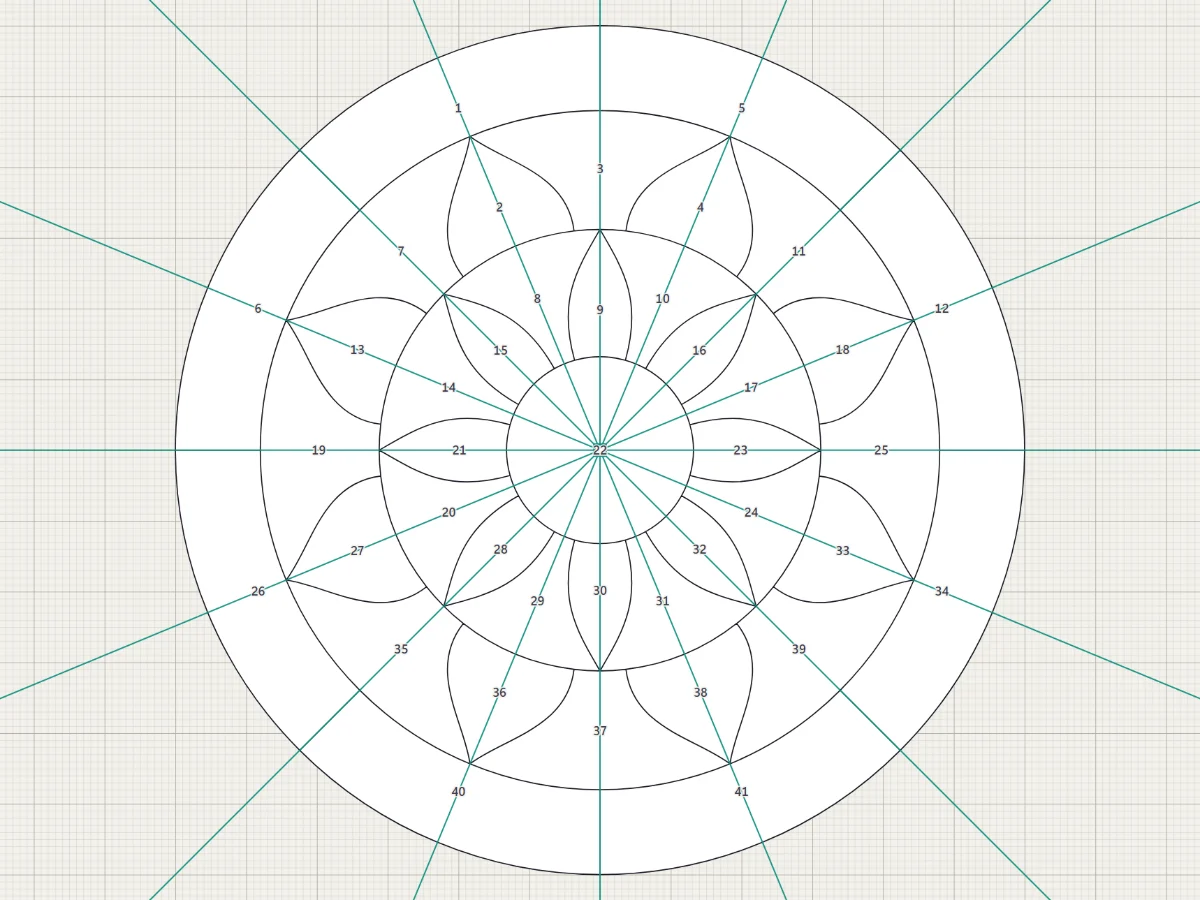
Draw it once with the Mirror
Mirror across a line or repeat around a centre, and see the reflected part live while you draw.
5 steps · 2 min
Draw
Draw it once with the Mirror
Mirror across a line or repeat around a centre, and see the reflected part live while you draw.
5 steps · 2 min