Lesson 1 of 23
A tour of VETRATA Studio
The four tabs, the menus, the tools and the bars around the drawing: where everything lives.
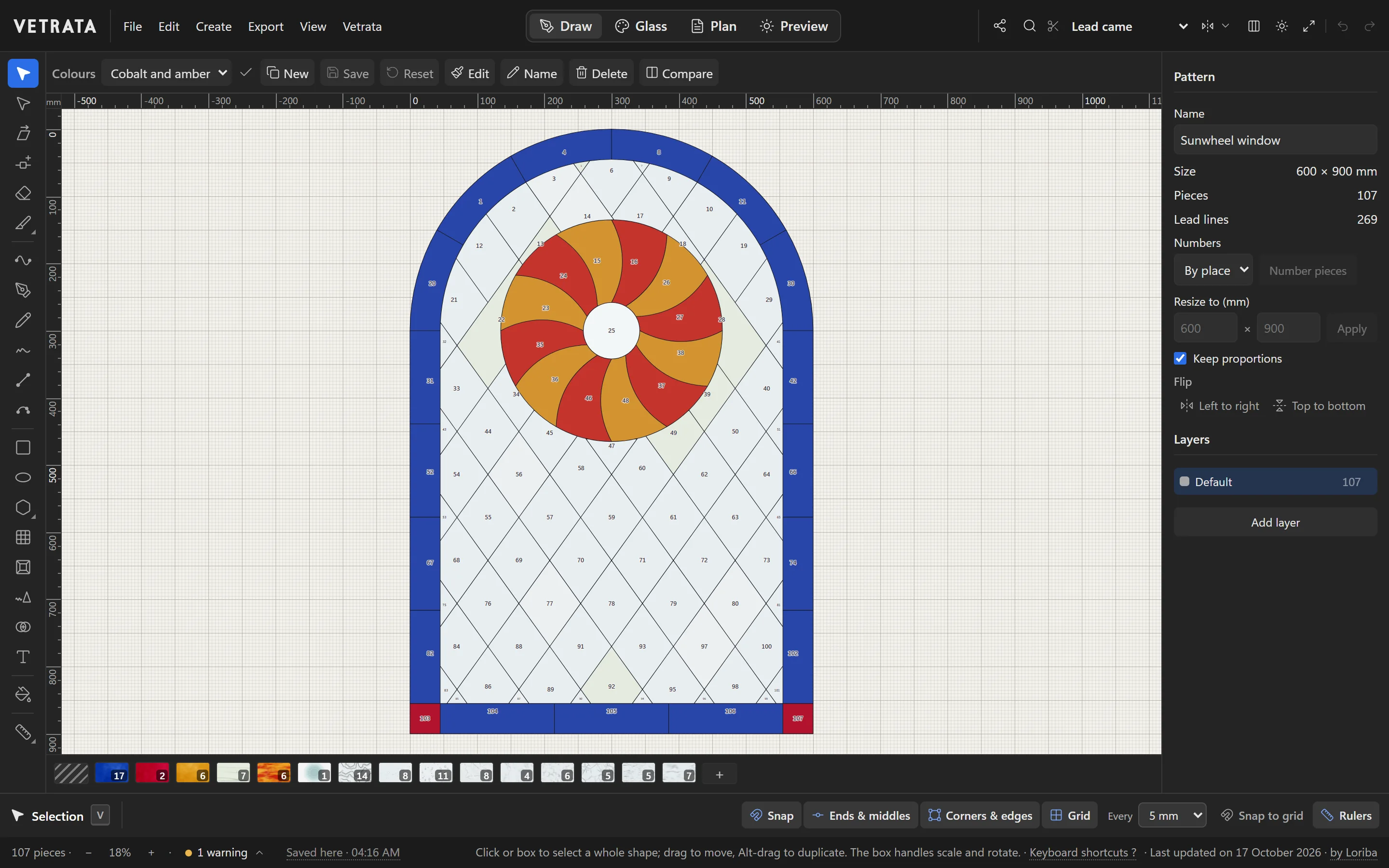
VETRATA Studio runs in your browser, with nothing to install and no account to make. Everything it does sits in one window, arranged around the pattern you are drawing.
-
1
Four tabs, one pattern
Across the top are the Studio's four workspaces. Draw is for the leadwork, Glass for choosing a glass for every piece, Plan for the numbered pattern plan and its colour key, and Preview for the finished panel in light.
All four work on the same pattern, so a lead you move in Draw has moved in the Plan and the Preview too.
-
2
The menus
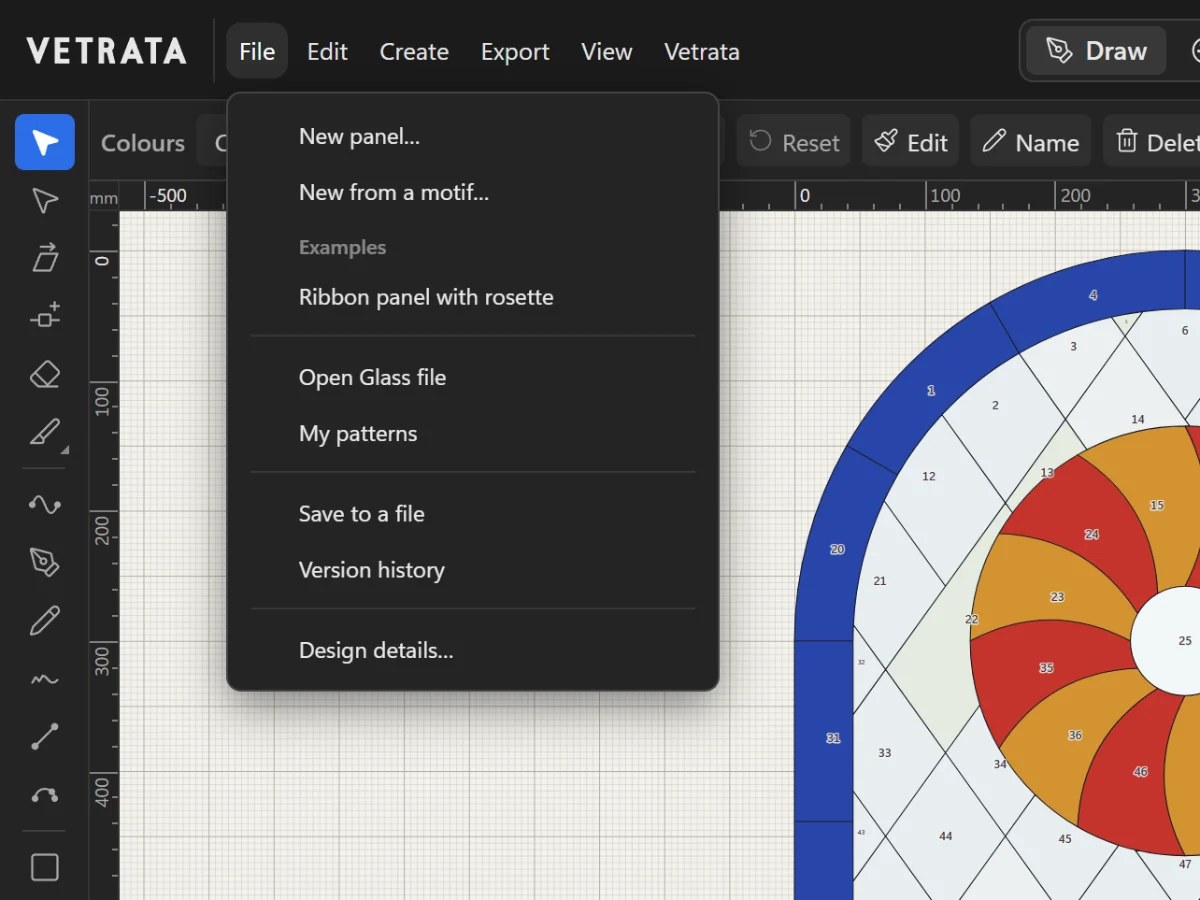
File starts, opens and saves patterns. Edit holds undo, copy and paste. Create adds motifs and lettering, imports SVG and DXF drawings, and places a tracing image. Export makes the cutting PDF, the plan and files for cutting machines. View sets the grid, rulers, guides and snapping.
The Vetrata menu has these tutorials, the keyboard shortcuts and the pattern shop.
-
3
The tool rail
Down the left edge are the drawing tools, in groups: selecting and editing, building the leadwork, shapes and detail, glazing, and measuring.
Point at a tool to see its name, its key and what it does. A small mark in a tool's corner means it has other forms: hold the button, or right-click it, to choose one.
-
4
The Inspector
On the right, the Inspector shows what you are working on. With nothing selected it describes the pattern: its name, size, number of pieces and lead lines, how the pieces are numbered, and its layers.
Select something and it shows that instead: its position and size, and the commands that act on it.
-
5
The glass bar and the status bar
Under the drawing, the glass bar holds the glasses in this pattern, each with the number of pieces it is on.
Along the bottom, the status bar counts the pieces, sets the zoom, says whether anything in the pattern is worth checking and when it was last saved, and spells out what the tool in your hand does.
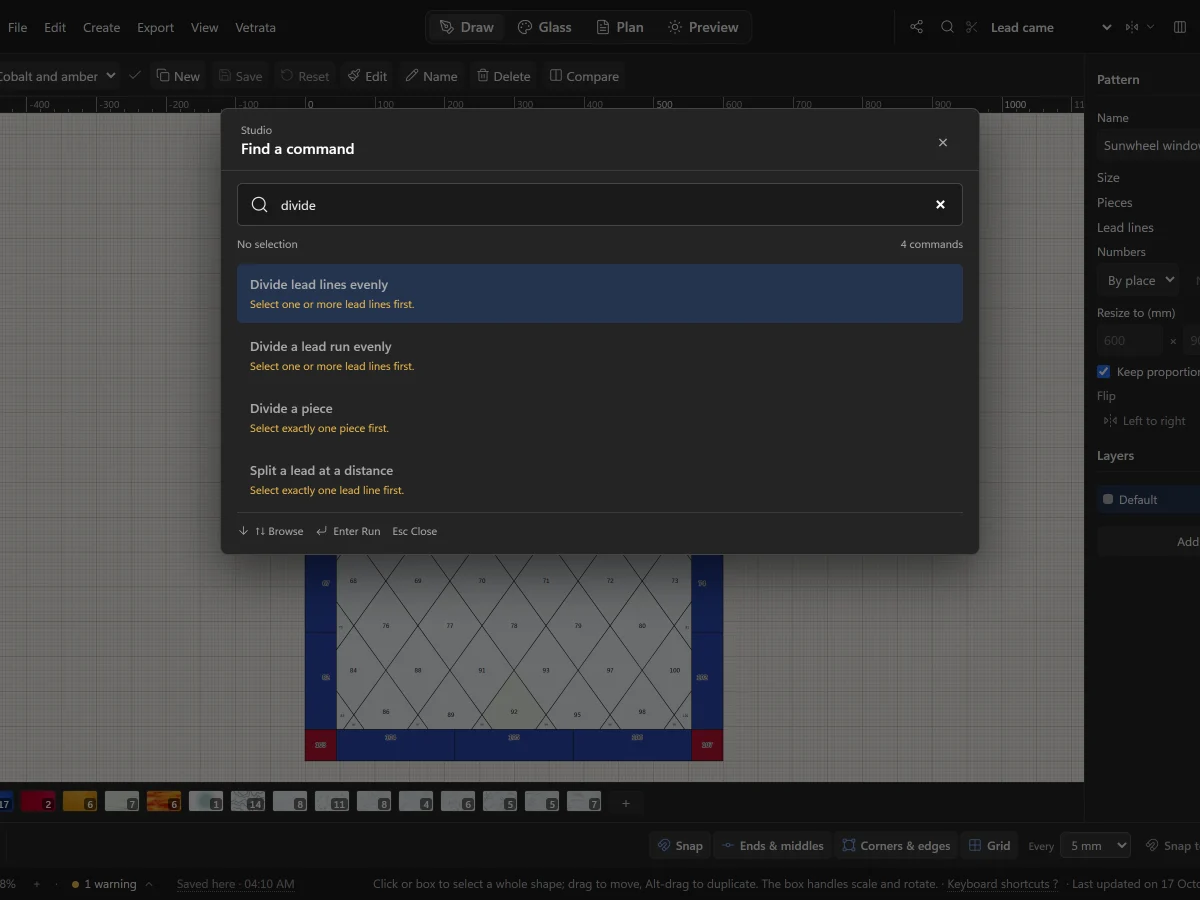
Tip Lost? Press CtrlK and type what you want to do. Find a command searches every command in the Studio.
More in Getting started
 Getting started
Find any command, and make the keys yours
Search every command with Ctrl+K, and change any keyboard shortcut to the key you want.
5 steps · 2 min
Getting started
Find any command, and make the keys yours
Search every command with Ctrl+K, and change any keyboard shortcut to the key you want.
5 steps · 2 min
 Getting started
Save, open and keep your patterns
Where the Studio keeps your work, how to save a pattern file, and how to step back to an earlier version.
6 steps · 2 min
Getting started
Save, open and keep your patterns
Where the Studio keeps your work, how to save a pattern file, and how to step back to an earlier version.
6 steps · 2 min